
The Custom broker lets you upload futures or stock trade logs even if we do not ship a native integration for your platform yet. Point us to the right columns once and every CSV you export in that format will drop straight into Reel Trader. Follow the screenshots below and you will be reviewing trades in minutes.
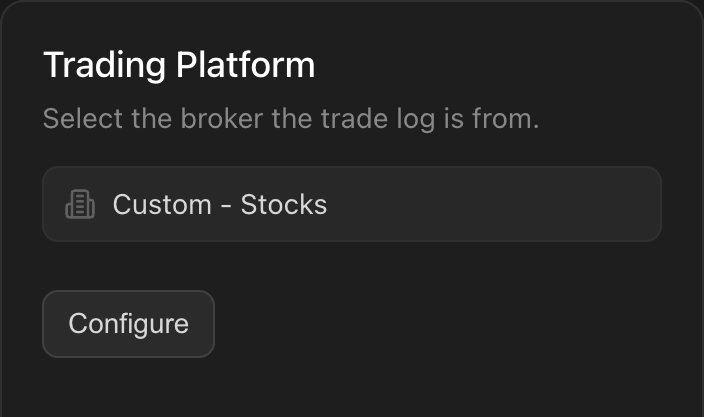
Step 1 - Pick Custom and click configure
On the import screen choose Custom - Stocks or Custom - Futures, then hit Configure to open the setup flow.
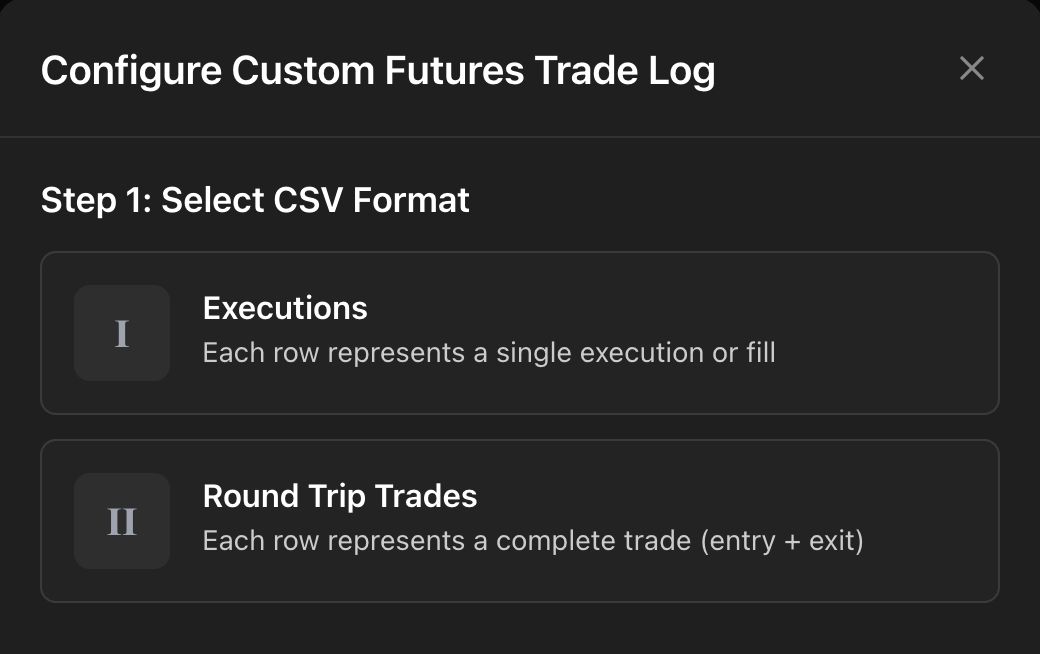
Step 2 - Choose your CSV format
Choose Executions if each row is a fill, or Round Trip Trades if each row contains both the entry and exit. Unsure? Skim the first few rows of your file; if you see separate entry/exit timestamps, pick Round Trip.
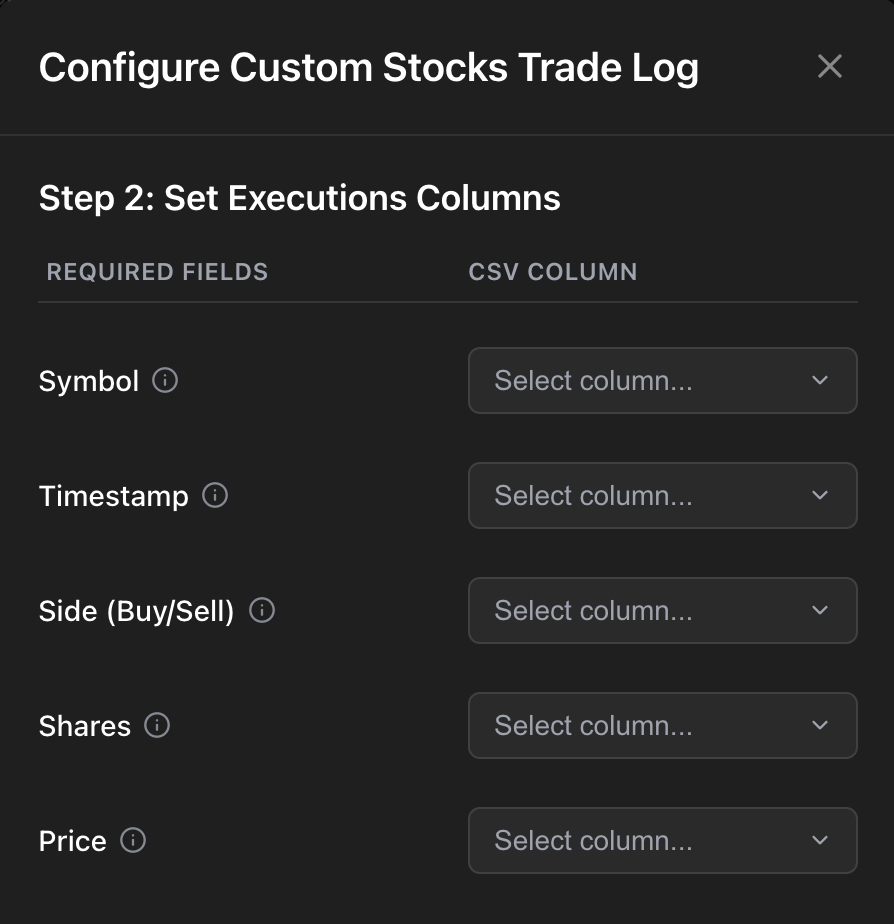
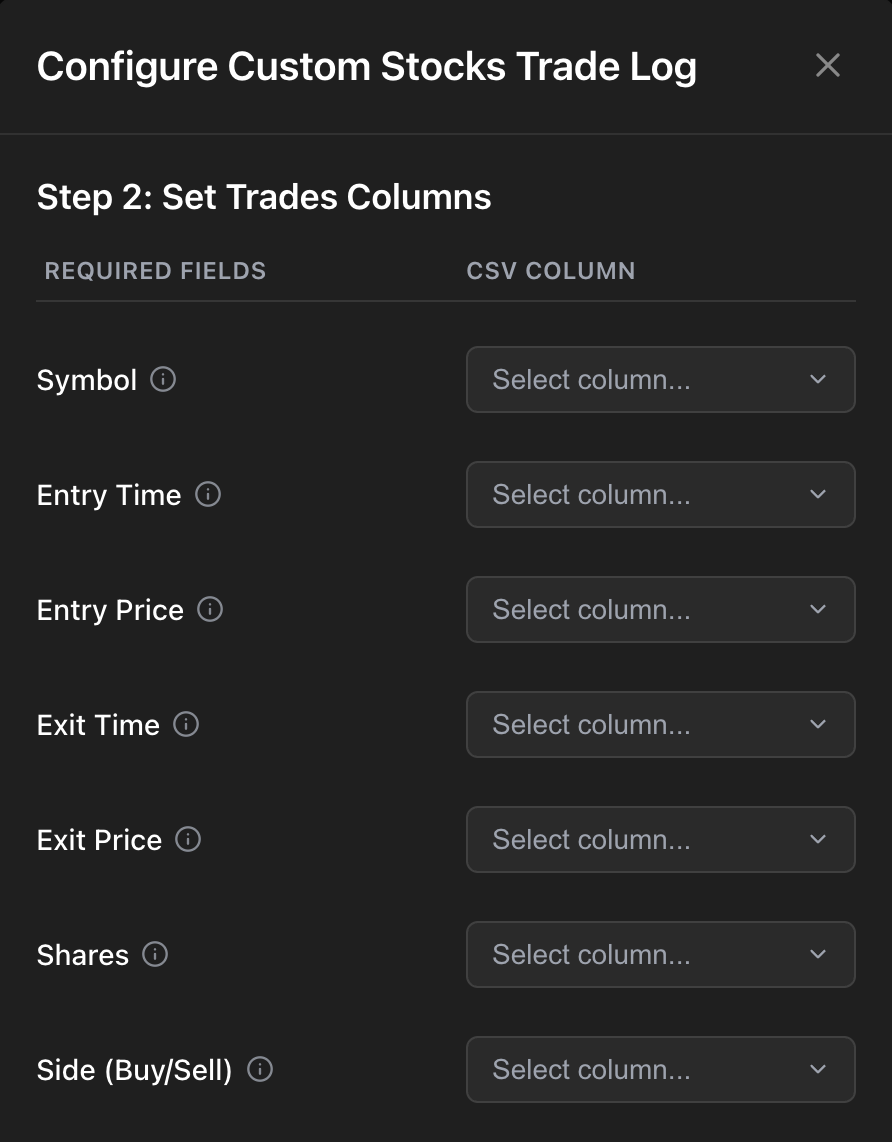
Step 3 - Map your columns
Use the dropdowns to match every required field with the column name in your CSV. Symbol, timestamp, side, quantity, and price are always required (for futures this column is labeled Quantity rather than Shares). If you chose Round Trip, you will also map entry and exit times/prices.
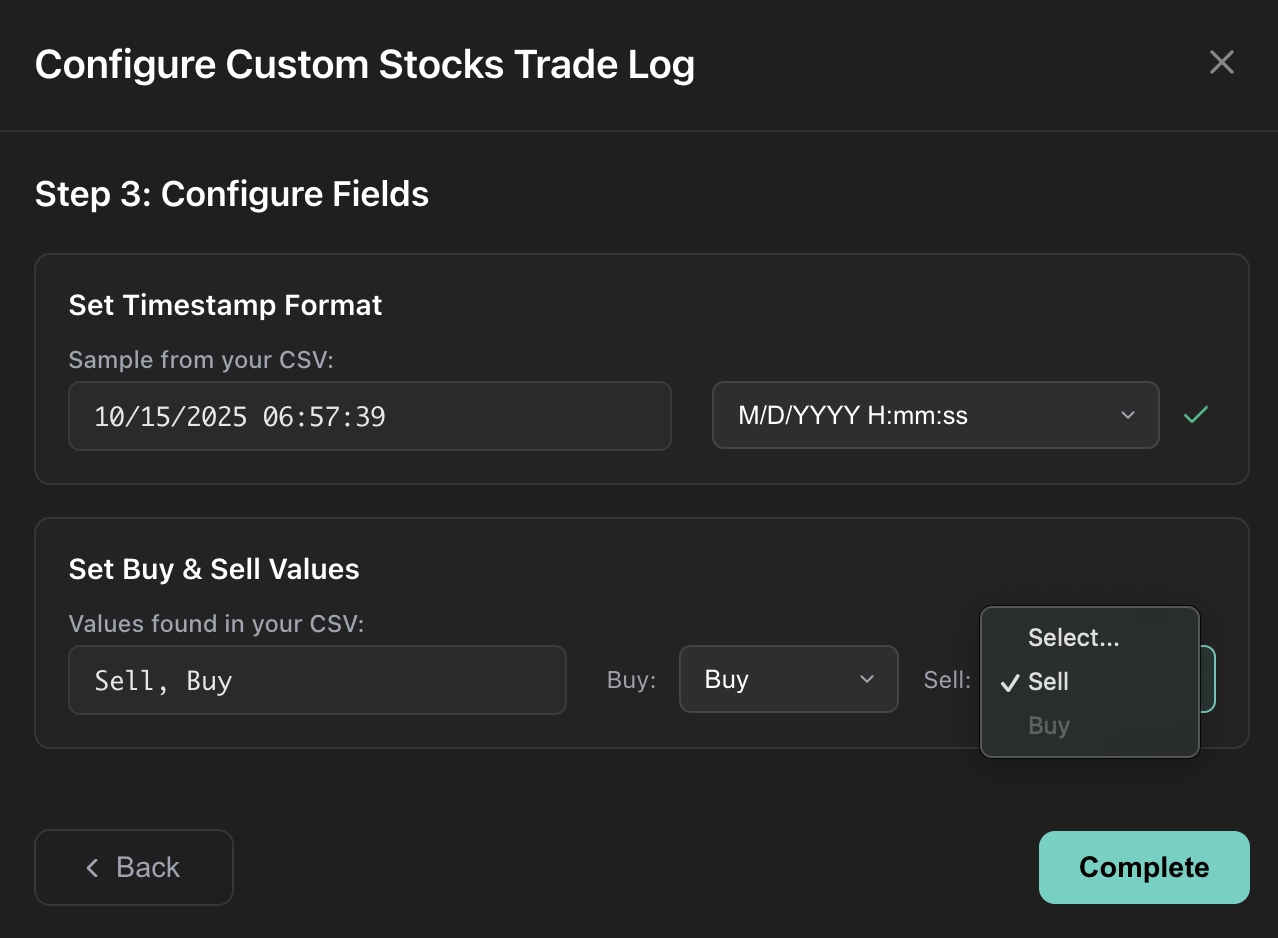
Step 4 - Confirm the timestamp format and side values
Review the sample timestamp we pull from your file and pick the matching format (for example M/D/YYYY H:mm:ss). Reel Trader tries to detect this automatically; if it misses, just match the pattern shown in the modal. Then choose the exact text your file uses for Buy and Sell. When everything looks good, click Complete and upload your log.
That’s it; upload your trade log file, press Import, and Reel Trader will parse it using the template you just saved. Reuse the same configuration for your next session and skip these steps entirely.